End-to-end Ai Agent On Gcp: Adk, Bigquery Mcp, Agent Engine, And Cloud Run
How I built a football statistics assistant using Google's Agent Development Kit, BigQuery via Cloud API Registry MCP, and deployed it to Google Cloud
AI agents are moving from prototypes to production. But building one that connects to real data, uses managed tools, and deploys to the cloud with CI/CD — that's where things get interesting.
In this article, I'll walk you through how I built a football statistics agent for the Qatar 2022 World Cup using:
- Google ADK (Agent Development Kit) as the agent framework
- BigQuery MCP via Cloud API Registry as the data tool
- Gemini 2.5 Flash as the LLM
- Cloud Run and Vertex AI Agent Engine as deployment targets
- Docker Bake, Docker Compose, and Cloud Build for builds and CI/CD
The agent answers natural language questions like "Who scored the most goals in the 2022 World Cup?" by generating and executing SQL queries against BigQuery — all powered by the MCP protocol.
The full source code is available on GitHub:
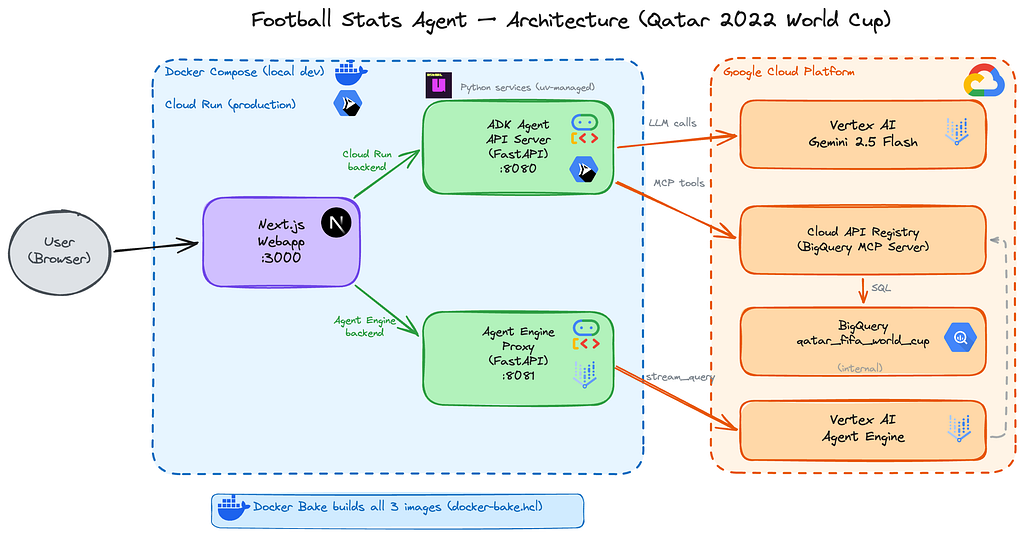
Architecture overview
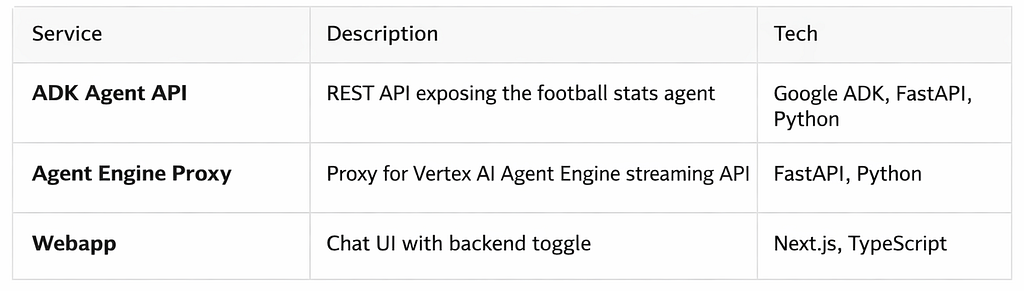
There are two deployment paths to Google Cloud:
- Cloud Run — Stateless REST API via adk api_server
- Vertex AI Agent Engine — Managed agent with Playground UI
What is Google ADK?
Google ADK (Agent Development Kit) is Google’s open-source framework for building AI agents in Python. It provides LlmAgent, a high-level abstraction that connects an LLM to tools, handles conversation flow, and exposes the agent as an API or web UI.
What makes ADK powerful is its native integration with the Google Cloud ecosystem: Vertex AI models, Cloud API Registry for MCP tools, and Agent Engine for managed deployment.
Connecting to BigQuery via Cloud API Registry MCP
The key innovation here is Cloud API Registry. Instead of running your own MCP server, Google provides a managed MCP server for BigQuery through the API Registry. The agent connects to it with just a few lines of code — no infrastructure to manage.
Here’s the pyproject.toml — only two dependencies are needed:
[project]
name = "football-agent-adk"
version = "0.1.0"
requires-python = ">=3.11"
dependencies = [
    "google-adk==1.27.2",
    "google-cloud-aiplatform==1.141.0",
]
Here’s the core of agent.py:
from google.adk.agents import LlmAgent
from google.adk.tools.api_registry import ApiRegistry

PROJECT_ID = os.environ.get("GCP_PROJECT_ID", "....")
REGISTRY_LOCATION = "global"
MODEL = "gemini-2.5-flash"

def get_header(context):
    return {"x-goog-user-project": PROJECT_ID}

def create_agent():
    tool_registry = ApiRegistry(
        PROJECT_ID,
        location=REGISTRY_LOCATION,
        header_provider=get_header
    )

    mcp_server_name = (
        f"projects/{PROJECT_ID}/locations/{REGISTRY_LOCATION}"
        f"/mcpServers/google-bigquery.googleapis.com-mcp"
    )
    toolset = tool_registry.get_toolset(mcp_server_name)

    return LlmAgent(
        model=MODEL,
        name="football_stats_agent",
        instruction=SYSTEM_INSTRUCTION,
        tools=[toolset],
    )

root_agent = create_agent()
That’s it. The ApiRegistry discovers the BigQuery MCP server, and get_toolset() returns the tools (execute_sql, get_table_info, etc.) that the agent can use. No local MCP server, no configuration files — just a managed connection to BigQuery.
The SYSTEM_INSTRUCTION contains the table schema, column descriptions, and business rules so the LLM knows how to generate correct SQL queries. This is critical because the table uses camelCase column names and stores numeric values as strings — the instruction tells the agent to use SAFE_CAST() for aggregation.
Dataset: loading the football stats into BigQuery
The repository includes the raw dataset in the raw_data/ folder so you can reproduce the full setup with your own GCP project:
- world_cup_team_players_stats_raw_ndjson.json — Qatar 2022 World Cup player statistics in NDJSON format
- create_and_load_team_stats_raw_table.sh— a script that loads the data into BigQuery
To load the data, first upload the NDJSON file to a GCS bucket, then run:
export PROJECT_ID=your-gcp-project-id
export REGION=europe-west1
export BUCKET_PATH=your-bucket-name/path
./raw_data/create_and_load_team_stats_raw_table.sh
The script uses bq load with --autodetect to create the qatar_fifa_world_cup.team_players_stat_raw table and infer the schema from the NDJSON data.
You can also check out this article on ADK, API Registry, and MCP servers in Google Cloud.
Running the agent locally
ADK provides built-in tools for local development. We use uv as our Python package manager because it is significantly faster than other alternatives.
# Install dependencies
uv sync

# Run the agent with ADK's web UI
uv run adk web
This starts a local web UI at http://localhost:8000 where you can interact with the agent directly — useful for testing prompts and verifying SQL generation before deploying.
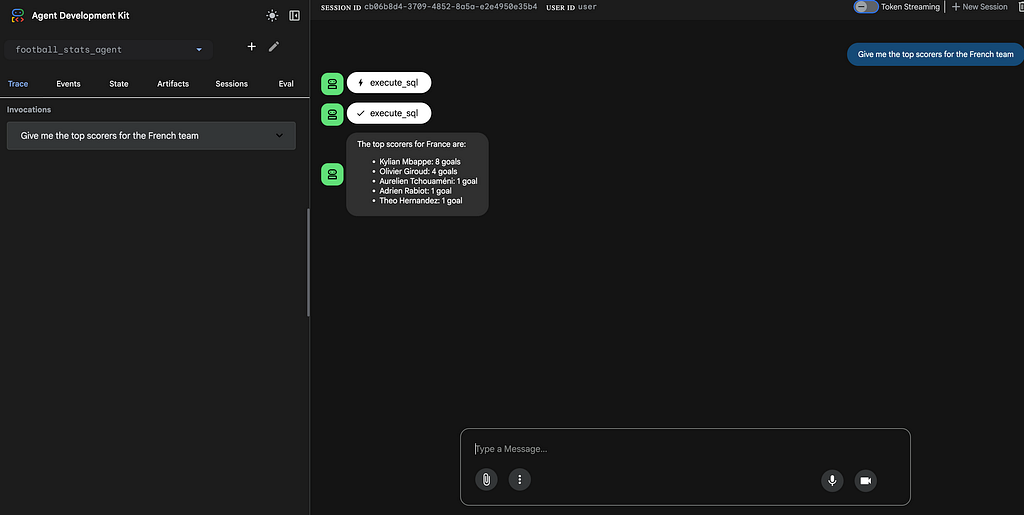
Two deployment paths: Cloud Run vs Agent Engine
ADK offers two ways to deploy your agent to Google Cloud. Each has its own trade-offs.
Cloud Run: direct API
The simplest path. The adk api_server command exposes your agent as a REST API. You package it in a Docker container and deploy to Cloud Run. The agent handles its own MCP connection to BigQuery directly.
Pros:
- Simple — one container, one service, no proxy needed
- Cost-effective — pay only for request duration (Cloud Run scales to zero)
- Full control — standard REST API with Swagger UI at /docs
- Simple — one container, one service, no proxy needed
- Cost-effective — pay only for request duration (Cloud Run scales to zero)
- Full control — standard REST API with Swagger UI at /docs
Cons:
- Self-managed — you handle scaling configuration, health checks, and monitoring
- No built-in Playground UI
Agent Engine: managed runtime
Agent Engine is Google’s managed runtime for AI agents on Vertex AI. It handles versioning, provides a Playground UI in the console, and integrates with the Vertex AI ecosystem.
However, Agent Engine doesn’t expose a public REST API directly. To call it from a webapp or external service, you need to build your own proxy. In this project, the proxy is a small FastAPI service deployed on Cloud Run — keeping everything serverless and simple.
Pros:
- Managed — Google handles infrastructure and scaling
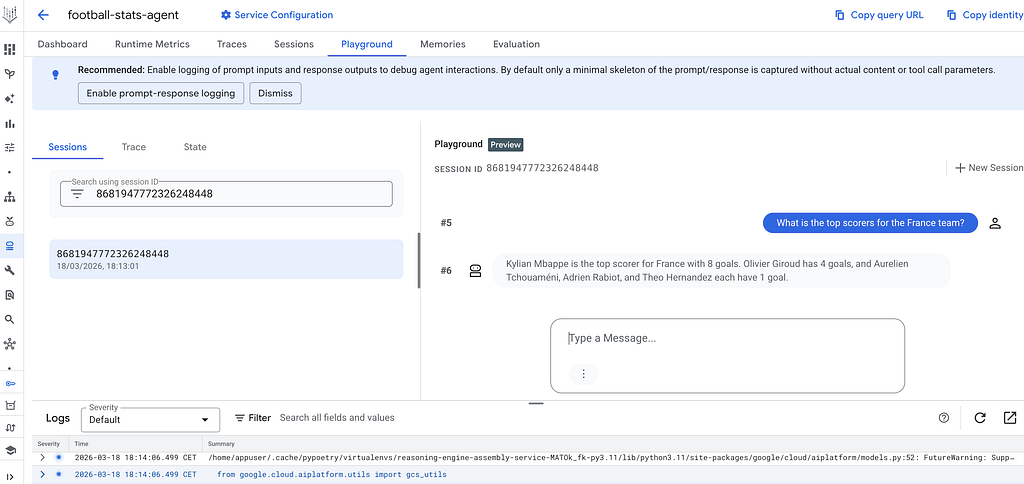
- Playground UI — test the agent directly from the GCP console
- Vertex AI integration — versioning, monitoring, and observability built-in
Cons:
- Requires a proxy — no direct public REST API, so you need an additional service to expose it
- Slightly higher cost — Agent Engine adds managed service pricing (compute-based) on top of model costs, and the proxy requires a second Cloud Run service (though both scale to zero when idle)
- Session requirement — you must create a session before each query (more on this below)
For most use cases, the Cloud Run path is simpler and cheaper. Agent Engine becomes valuable when you need managed versioning, the Playground UI, or deeper Vertex AI integration.
Example screenshot of the playground available in Agent Engine:
Deploying to Cloud Run
For the Cloud Run deployment, the agent is packaged with a multi-stage Dockerfile using uv:
FROM python:3.11-slim AS builder

COPY --from=ghcr.io/astral-sh/uv:latest /uv /uvx /bin/

WORKDIR /app

COPY pyproject.toml uv.lock ./

RUN --mount=type=cache,target=/root/.cache/uv \
    uv sync --frozen --no-dev --no-install-project

COPY agent_config.yaml ./
COPY football_stats_agent/ ./football_stats_agent/

RUN --mount=type=cache,target=/root/.cache/uv \
    uv sync --frozen --no-dev

FROM python:3.11-slim

RUN groupadd --gid 1001 appuser && \
    useradd --uid 1001 --gid 1001 --create-home appuser

WORKDIR /agents

COPY --from=builder --chown=appuser:appuser /app/.venv /app/.venv
COPY --from=builder --chown=appuser:appuser /app/football_stats_agent/ \
    ./football_stats_agent/

ENV PATH="/app/.venv/bin:$PATH"

USER appuser

CMD ["adk", "api_server", "--host", "0.0.0.0", "--port", "8080"]
Key details:
- Multi-stage build— Dependencies are installed in a builder stage, then only the .venv is copied to the runtime image
- uv cache mount — --mount=type=cache avoids re-downloading packages on every build
- Use Docker layer caching correctly — To avoid re-downloading Python dependencies when the pyproject.toml and lock file haven’t changed.
- Non-root user — The container runs as appuser (UID 1001) for security
- WORKDIR /agents — ADK discovers the agent package by convention from this directory
- adk api_server — Exposes the agent as a REST API with Swagger UI at /docs
Deploy to Cloud Run with:
gcloud run deploy football-stats-api \
  --image ${REGISTRY}/football-stats-api:latest \
  --region europe-west1 \
  --platform managed \
  --allow-unauthenticated \
  --port 8080 \
  --set-env-vars=GCP_PROJECT_ID=${PROJECT_ID} \
  --set-env-vars=LOCATION=europe-west1 \
  --set-env-vars=GOOGLE_GENAI_USE_VERTEXAI=True
Deploying to Vertex AI Agent Engine
Deployment uses the adk deploy CLI:
uv run adk deploy agent_engine \
    --project "$PROJECT_ID" \
    --region "$LOCATION" \
    --display_name "football-stats-agent" \
    football_stats_agent
Important: Use adk deploy agent_engine instead of custom Python deploy scripts. Custom scripts using ReasoningEngine.create() with AdkApp fail with pickling errors due to MCP toolsets. The CLI handles serialization correctly and enables the Playground.
The Agent Engine Proxy
Since Agent Engine doesn’t expose a public REST API, we need a proxy to make it accessible from the webapp. The proxy is a small FastAPI service deployed on Cloud Run that:
1. Creates a session before each query (async_create_session)
2. Streams the query with the session ID (async_stream_query)
3. Extracts the final text response from the streaming events
The session is critical — without it, the MCP connection to BigQuery drops before the agent can complete its full reasoning loop (tool call → BigQuery result → text response).
Webapp: a chat UI with backend toggle
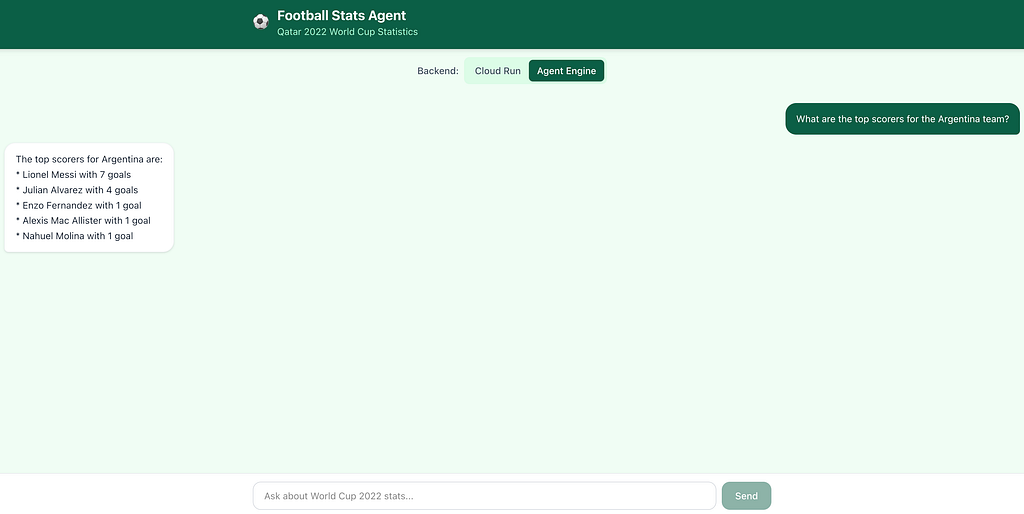
The webapp is a simple Next.js chat interface that lets you interact with the agent and toggle between the two backends — Cloud Run (ADK API) and Agent Engine (via the proxy).
It uses Next.js API routes as a backend-for-frontend layer: the browser sends messages to /api/cloud-run or /api/agent-engine, which proxy the request to the corresponding Cloud Run service. This keeps backend URLs and credentials server-side.
The backend URLs are configured via environment variables (CLOUD_RUN_API_URL, AGENT_ENGINE_PROXY_URL), loaded from .envrc locally or set by Cloud Run at deploy time.

Docker Bake: centralized builds with registry cache
Instead of managing separate docker build commands for 3 services, I use Docker Bake with a single docker-bake-agentic-apps.hcl file:
variable "REGISTRY" {
  default = "${LOCATION}-docker.pkg.dev/${PROJECT_ID}/${REPO_NAME}"
}

group "default" {
  targets = ["adk-agent", "agent-engine-proxy", "webapp"]
}

target "adk-agent" {
  context    = "."
  dockerfile = "Dockerfile"
  tags       = ["${REGISTRY}/football-stats-api:latest"]
  cache-from = ["type=registry,ref=${REGISTRY}/football-stats-api:cache"]
  cache-to   = ["type=registry,ref=${REGISTRY}/football-stats-api:cache,mode=max"]
}

target "agent-engine-proxy" {
  context    = "./agent_engine_proxy"
  dockerfile = "Dockerfile"
  tags       = ["${REGISTRY}/agent-engine-proxy:latest"]
  cache-from = ["type=registry,ref=${REGISTRY}/agent-engine-proxy:cache"]
  cache-to   = ["type=registry,ref=${REGISTRY}/agent-engine-proxy:cache,mode=max"]
}
One command builds all 3 images:
docker buildx bake
The cache-from/cache-to with type=registry and mode=max caches all layers in Artifact Registry — not just the final layer. This means CI/CD pipelines reuse cached layers across runs, significantly speeding up builds when only application code changes.
Docker Compose: run the webapp and all services locally
You can run all three services — the ADK Agent, Agent Engine proxy, and webapp — locally using Docker Compose:
services:
  adk-agent:
    build:
      context: .
      dockerfile: Dockerfile
    ports:
      - "8080:8080"
    environment:
      - GCP_PROJECT_ID=gb-poc-373711
      - GOOGLE_CLOUD_PROJECT=gb-poc-373711
      - LOCATION=europe-west1
      - GOOGLE_GENAI_USE_VERTEXAI=True
      - BIGQUERY_DATASET=qatar_fifa_world_cup
      - BIGQUERY_TABLE=team_players_stat_raw
      - GOOGLE_APPLICATION_CREDENTIALS=/tmp/adc.json
    volumes:
      - ${HOME}/.config/gcloud/application_default_credentials.json:/tmp/adc.json:ro

  agent-engine-proxy:
    build:
      context: ./agent_engine_proxy
      dockerfile: Dockerfile
    ports:
      - "8081:8080"
    environment:
      - GCP_PROJECT_ID=gb-poc-373711
      - LOCATION=europe-west1
      - ENGINE_ID=${ENGINE_ID}
      - GOOGLE_APPLICATION_CREDENTIALS=/tmp/adc.json
    volumes:
      - ${HOME}/.config/gcloud/application_default_credentials.json:/tmp/adc.json:ro

  webapp:
    build:
      context: ./webapp
      dockerfile: Dockerfile
    ports:
      - "3000:3000"
    environment:
      - CLOUD_RUN_API_URL=http://adk-agent:8080
      - AGENT_ENGINE_PROXY_URL=http://agent-engine-proxy:8080
    depends_on:
      - adk-agent
      - agent-engine-proxy
# Authenticate your machine on GCP
gcloud auth login --update-adc

# Build all images
docker buildx bake

# Set the Agent Engine ID (required by the proxy)
export ENGINE_ID=your-engine-id

# Start all services
docker compose up
This starts the ADK Agent API on http://localhost:8080, the Agent Engine Proxy on http://localhost:8081, and the Webapp on http://localhost:3000. GCP credentials are mounted from the host via gcloud auth application-default login (Application Default Credentials).
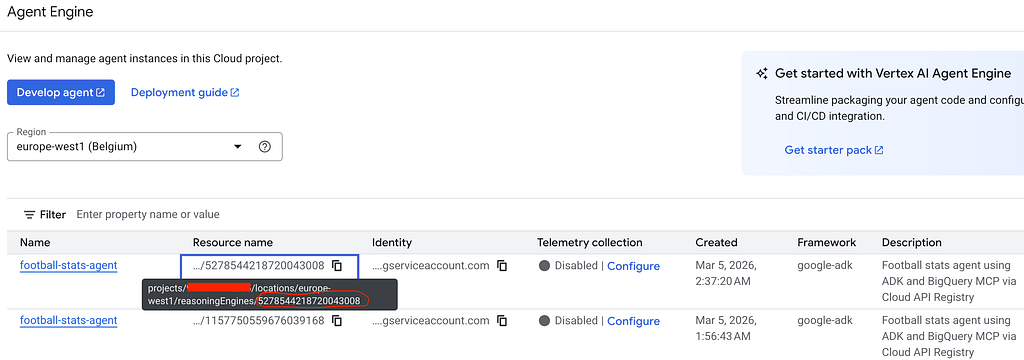
The ENGINE_ID must match an engine deployed with adk deploy agent_engine (which exposes async_create_session and async_stream_query methods). Engines deployed with custom Python classes use a different API and won’t work with the proxy.
You can retrieve it from the Google Cloud console, under the Agent Engine menu.
CI/CD with Cloud Build
The entire pipeline is defined in a single deploy-services-to-cloud-run.yaml with 3 steps:
Step 1 — Build & push all 3 images with Docker Bake and registry cache:
- name: 'gcr.io/cloud-builders/docker'
  script: |
    docker buildx create --use
    export REGISTRY="${LOCATION}-docker.pkg.dev/${PROJECT_ID}/${REPO_NAME}"
    docker buildx bake -f docker-bake-agentic-apps.hcl --push
  env:
    - 'PROJECT_ID=${PROJECT_ID}'
    - 'LOCATION=${LOCATION}'
    - 'REPO_NAME=internal-images'
Step 2 — Deploy Agent Engine using the uv:python3.11-alpine image. This image is much smaller and faster than the gcloud SDK image. Only google-adk is installed — not the full project dependencies — since we only need the adk deployCLI:
- name: 'ghcr.io/astral-sh/uv:python3.11-alpine'
  script: |
    uv pip install --system google-adk
    adk deploy agent_engine \
      --project "${PROJECT_ID}" \
      --region "${LOCATION}" \
      --display_name "football-stats-agent" \
      football_stats_agent
  env:
    - 'PROJECT_ID=${PROJECT_ID}'
    - 'LOCATION=${LOCATION}'
Step 3 — Deploy all 3 Cloud Run services. The Agent Engine Proxy needs the Engine ID to know which agent instance to call. Since step 2 creates a new engine each time, we retrieve the latest deployed Engine ID via the Vertex AI REST API and pass it to the proxy as an environment variable:
- name: 'gcr.io/google.com/cloudsdktool/google-cloud-cli:slim'
  script: |
    ENGINE_ID=$(curl -s \
      -H "Authorization: Bearer $(gcloud auth print-access-token)" \
      "https://${LOCATION}-aiplatform.googleapis.com/v1beta1/..." \
      | grep 'reasoningEngines/' | head -1 \
      | grep -o 'reasoningEngines/[0-9]*' | cut -d'/' -f2)

    gcloud run deploy football-stats-api ...
    gcloud run deploy agent-engine-proxy \
      --set-env-vars=ENGINE_ID=${ENGINE_ID} ...
    gcloud run deploy football-stats-webapp ...
We use google-cloud-cli:slim instead of stable (smaller) because the slim variant includes tools like curl, which is needed to call the Vertex AI REST API for Engine ID retrieval.
The pipeline uses Cloud Build predefined substitutions $PROJECT_ID and $LOCATION from the --project and --region flags — no custom substitutions needed.
Run the pipeline:
gcloud builds submit \
  --config deploy-services-to-cloud-run.yaml \
  --project my-project \
  --region europe-west1
IAM permissions
The following roles are required for the user and relevant service accounts:
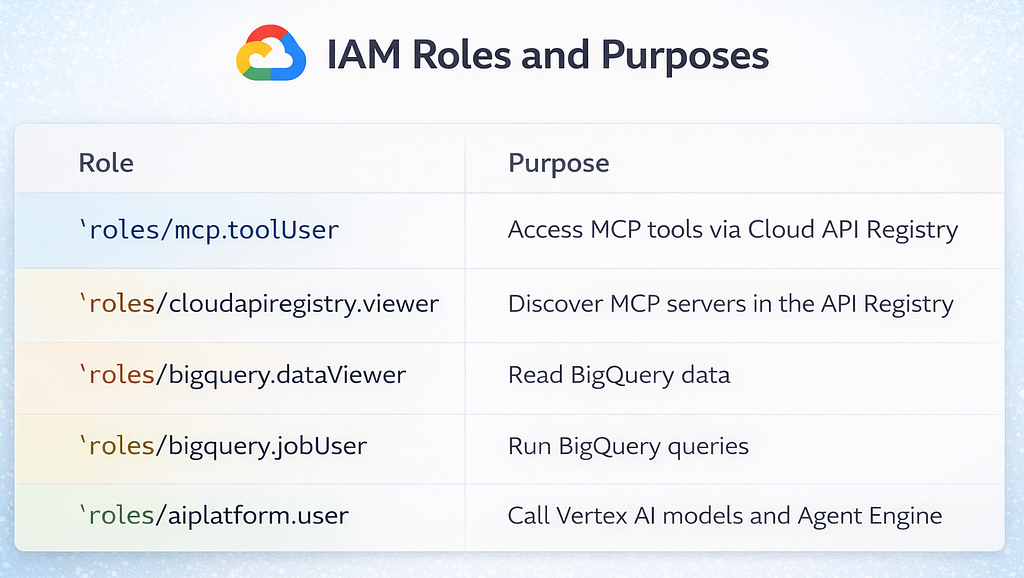
The cloudapiregistry.viewer role is easy to miss — without it, the deployment fails with “MCP server not found.”
Key takeaways
1. Cloud API Registry simplifies MCP — No need to run your own MCP server. Google manages the BigQuery MCP server, and ADK’s ApiRegistry connects to it in a few lines of code.
2. Agent Engine requires sessions — When using the streaming API, always create a session before querying. Without it, the MCP connection drops before the agent completes its reasoning loop.
3. adk deploy over custom scripts— The CLI handles MCP toolset serialization correctly. Custom Python deploy scripts fail with pickling errors.
4. Docker Bake with registry cache — Centralizes multi-service builds and dramatically speeds up CI/CD with layer caching in Artifact Registry.
5. System instructions matter — The agent’s accuracy depends heavily on the system instruction. Include the full table schema, column types, naming conventions (camelCase!), and business rules for calculations.
Try it yourself
The full source code is available on GitHub. Clone it, set up your GCP project, and ask the agent about the 2022 World Cup:
- ”Who scored the most goals?”
- ”Show me the top 5 players by assists”
- ”Which goalkeepers had the highest save percentage?”
- ”Compare France and Argentina players by performance rating”
— -
If you found this article helpful, follow me for more content on AI agents, Google Cloud, and data engineering:
End-to-End AI Agent on GCP: ADK, BigQuery MCP, Agent Engine, and Cloud Run was originally published in Google Cloud - Community on Medium, where people are continuing the conversation by highlighting and responding to this story.
Popular Products
-
 Electric Toothbrush & Water Flosser S...
$43.56$21.78 -
 Foldable Car Trunk Multi-Compartment ...
$329.56$164.78 -
 Mommy Diaper Backpack with Stroller O...
$111.56$55.78 -
 Ai Dash Cam with Front & Rear HD, GPS...
$295.56$147.78 -
 Smart Auto-Recharge Robot Vacuum Cleaner
$613.56$306.78